Run claude update in your terminal to install the latest version of Claude Code, then restart any open sessions. Native installs also update themselves in the background, so most people only need the manual command when they want a fix right away. claude upgrade is the same command under another name.
This guide is for anyone who runs the Claude Code CLI on macOS, Linux, WSL or Windows. You need an existing install and a terminal. How you update depends on how you installed: the native installer keeps itself current, while Homebrew, WinGet, npm and Linux package installs each have their own upgrade command, listed in the table further down.
How to update Claude Code
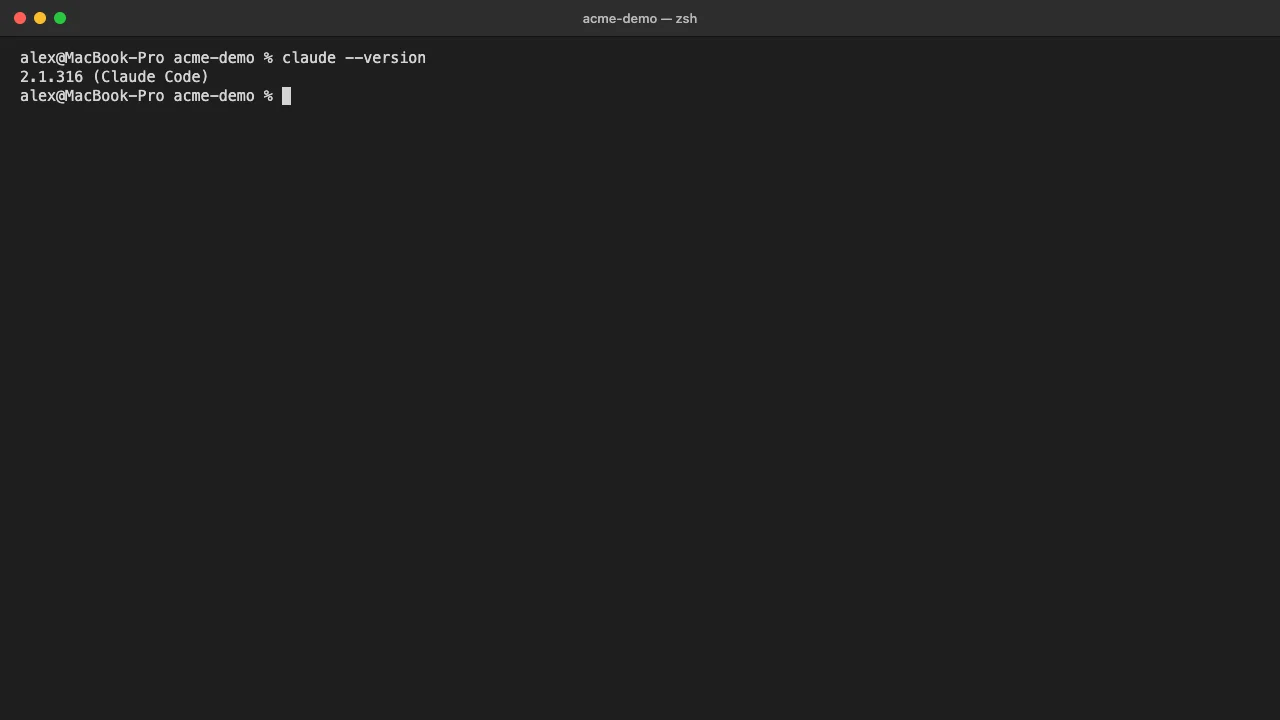
- Check which version you have. Open a terminal, type
claude --versionand press Enter.
claude --version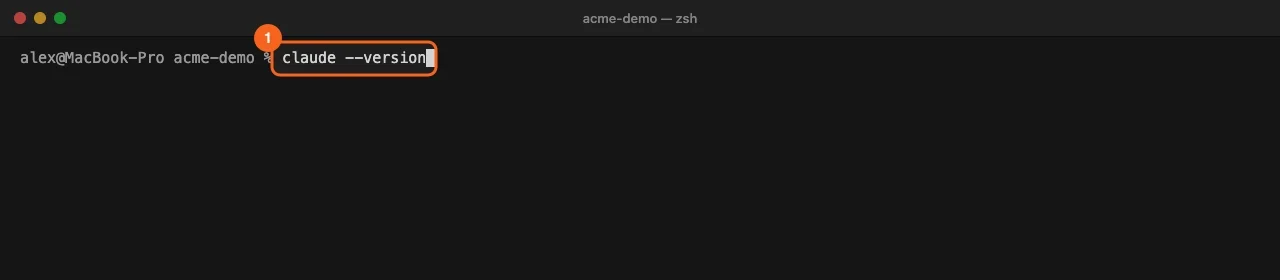
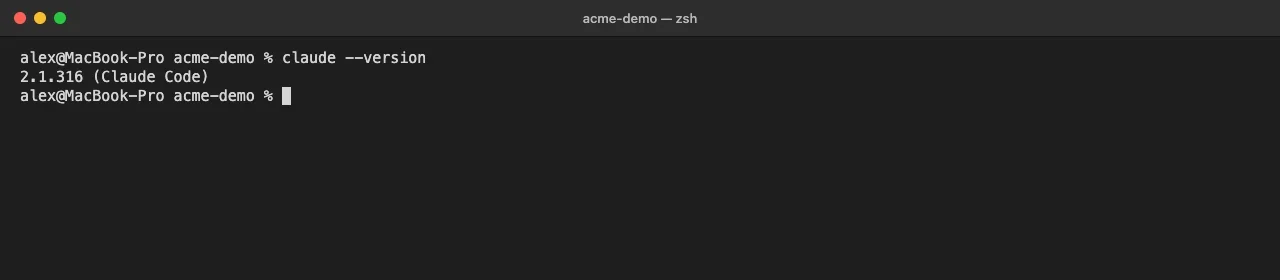
- Note the version number. The command prints one line, such as
2.1.316 (Claude Code). Keep it, so you can compare after the update.
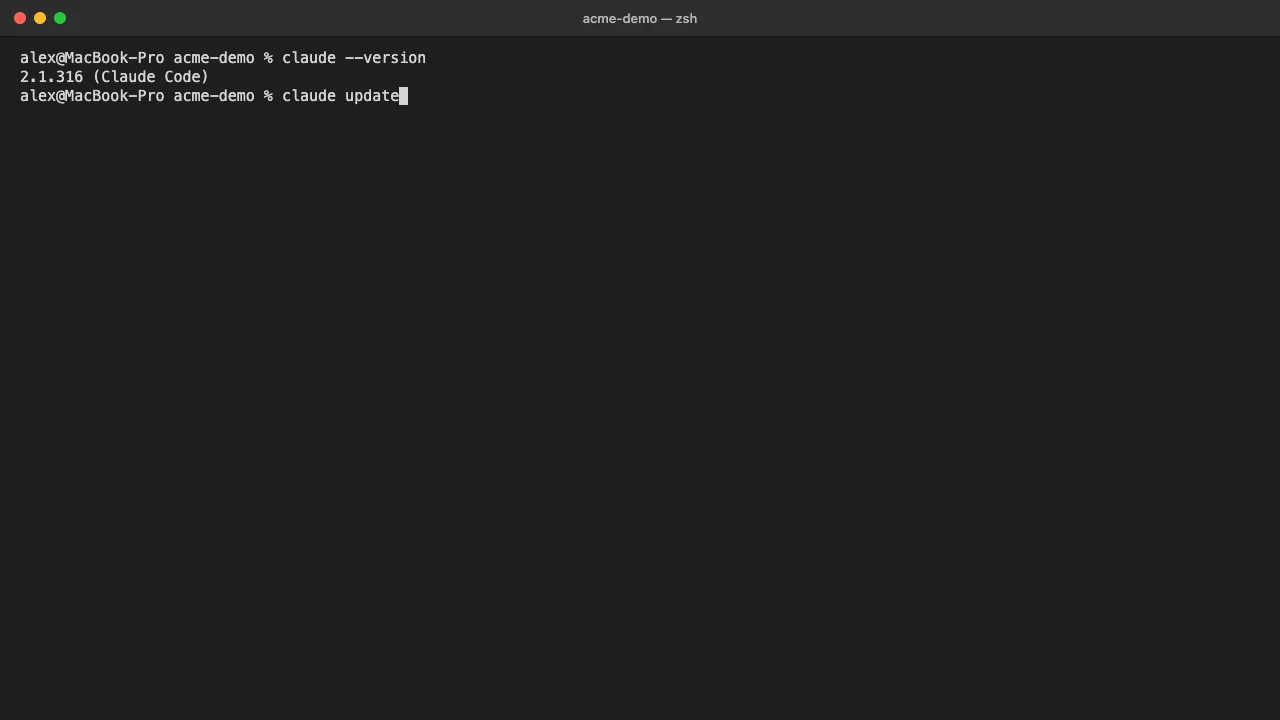
- Run the update command. Type
claude updateand press Enter. It checks for a newer release and installs it if one exists. When an update installs, it reportsSuccessfully updated from <old version> to version <new version>. If you are already current, it reportsClaude Code is up to date (<version>). Installs managed by Homebrew, WinGet or apk reportClaude is up to date!instead.
claude update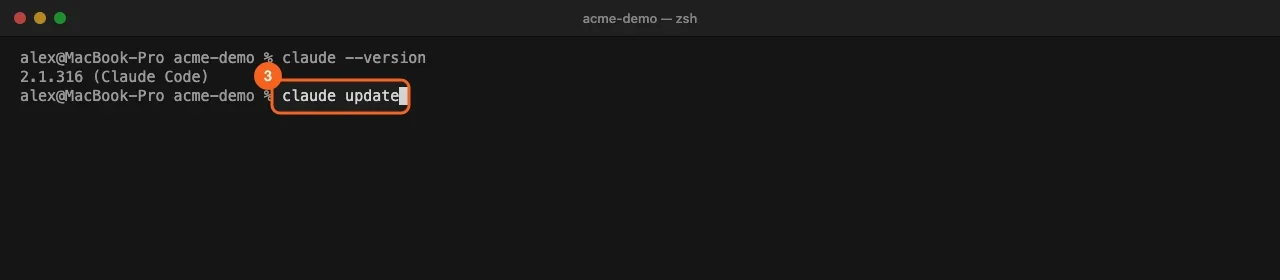
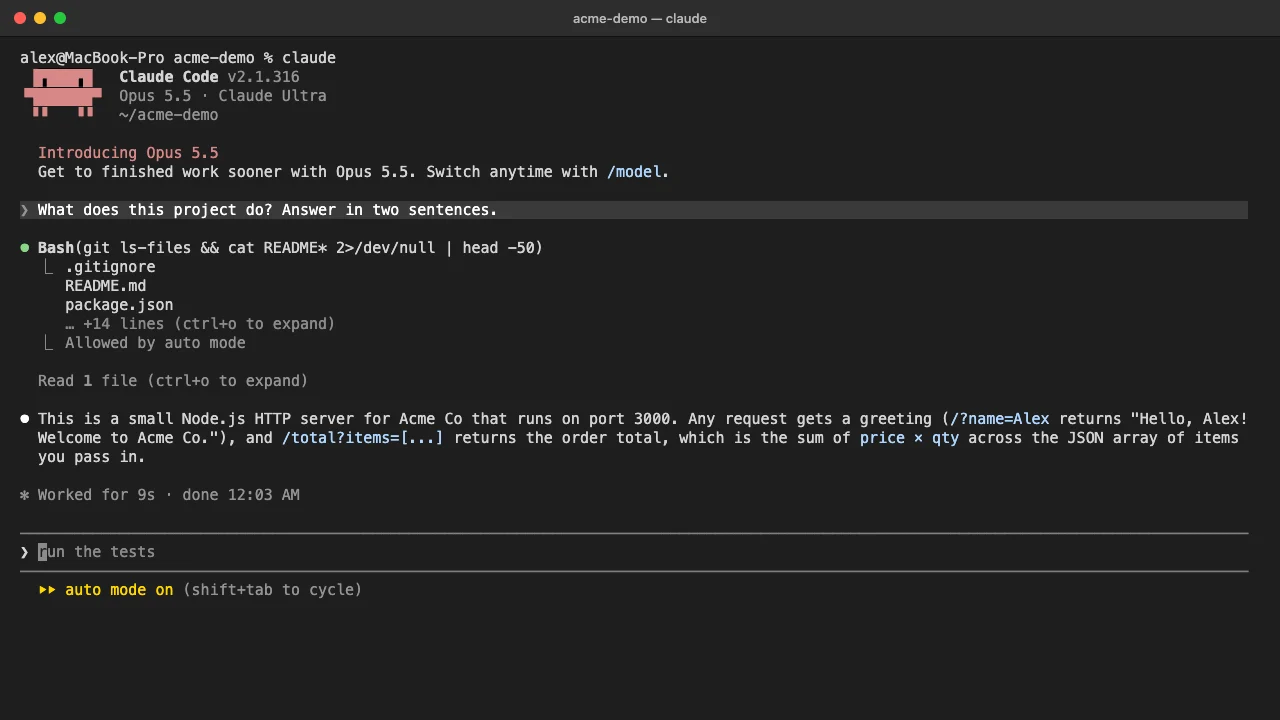
- Restart Claude Code. A new version takes effect the next time Claude Code starts. Exit any open session and start it again in your project folder. See how to restart Claude Code if a session will not close cleanly.
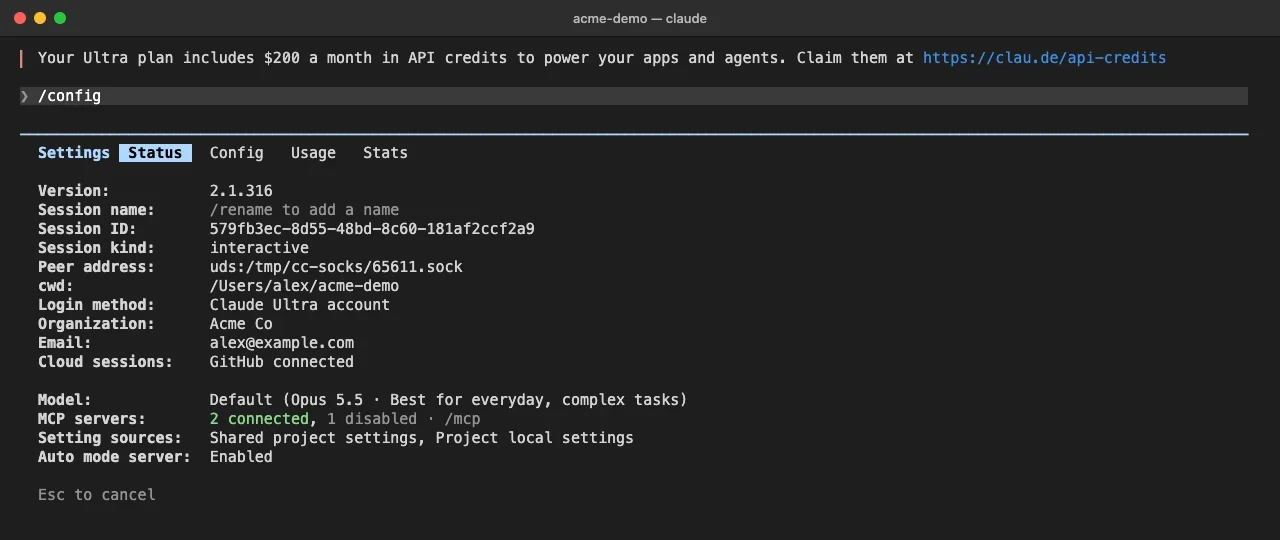
claude- Confirm the new version. Run
claude --versionagain, or type/statusinside a session. The Status tab shows the version on its first line, next to your login method and the settings files that loaded.
How to upgrade Claude Code by install method
claude update is built for the native installer. The CLI help notes that package-manager installs update through the package manager, so on those installs run the command for your method.
| Installed with | Upgrade command | Updates in the background |
|---|---|---|
| Native installer | claude update |
Yes |
Homebrew, claude-code cask |
brew upgrade claude-code |
No |
Homebrew, claude-code@latest cask |
brew upgrade claude-code@latest |
No |
| WinGet | winget upgrade Anthropic.ClaudeCode |
No |
| npm | npm install -g @anthropic-ai/claude-code@latest |
Yes, if npm’s global folder is writable |
| apt | sudo apt update && sudo apt upgrade claude-code |
No |
| dnf | sudo dnf upgrade claude-code |
No |
| apk | apk update && apk upgrade claude-code |
No |
On npm, avoid npm update -g: it respects the version range from the original install and may not move you to the newest release. On Homebrew or WinGet, set the CLAUDE_CODE_PACKAGE_MANAGER_AUTO_UPDATE environment variable to 1 and Claude Code runs the upgrade for you in the background, then shows a restart prompt. Homebrew keeps old versions on disk, so run brew cleanup now and then.
Why Claude Code is not updating
Run claude doctor first. It prints read-only install and settings checks, including the result of the last update attempt.
claude doctor- The version did not change after
claude update. The new build applies at the next start. Close every open session and start again. Ifclaudestill runs an old build, you may have a second install or a leftover shell alias from an older installer. - Updates never arrive on their own. Homebrew, WinGet, apt, dnf and apk installs do not update in the background by default. Use the command from the table.
- Auto-updates are switched off. A
DISABLE_AUTOUPDATERvalue of"1"stops the background check, butclaude updatestill works.DISABLE_UPDATESblocks every update path, manual ones too.claude doctorshowsdisabled (set by env: DISABLE_AUTOUPDATER)on the Auto-updates line when the first one is set. - npm cannot write to its global folder. Claude Code shows a one-time notice at startup and
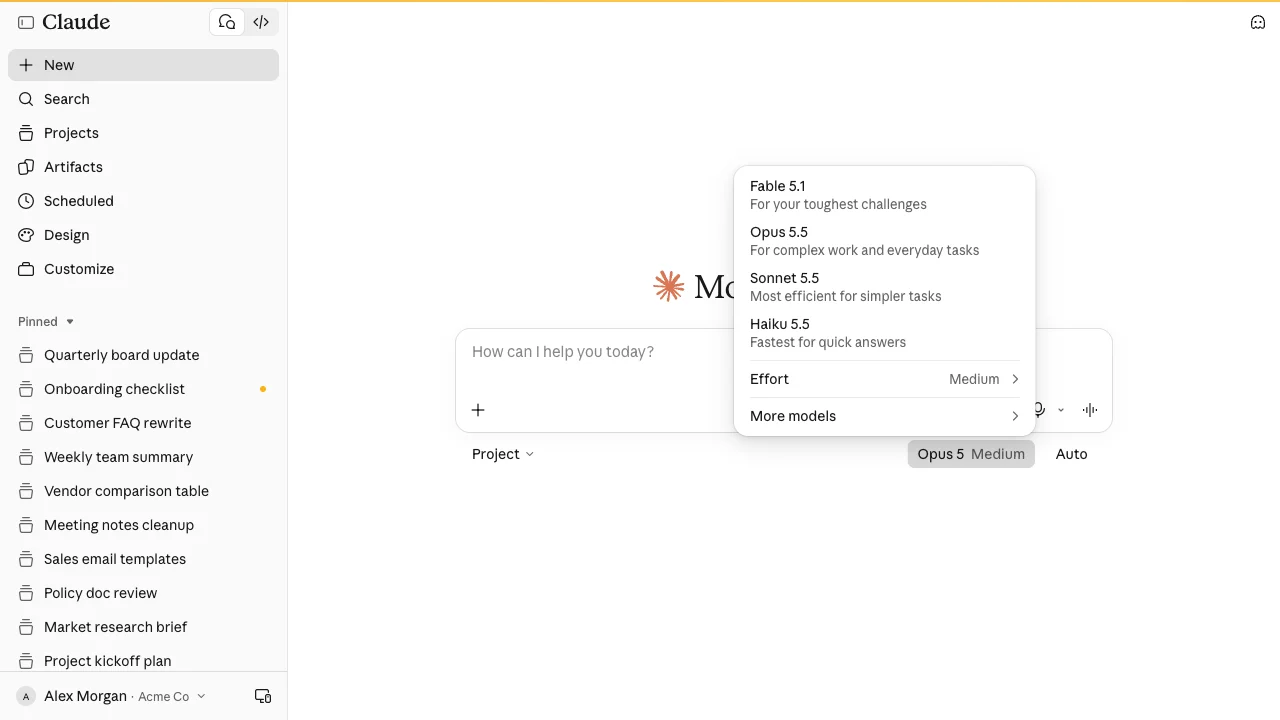
claude doctorlists the fixes. Do not reinstall withsudo, because Claude Code runs npm without it when it updates itself. - A new model is missing. The stable channel serves a build that is about a week old. A newly launched model can need a newer version than stable serves, so move to the latest channel to use it.
- Your organization sets the version. Managed settings can set a minimum and a maximum version, and updates respect that ceiling. Ask your admin before working around it.
Choose a release channel
The autoUpdatesChannel setting controls which builds both background updates and claude update install. "latest" is the default and ships new features as soon as they release. "stable" uses a build that is about one week old and skips releases with major regressions. Change it in /config under Auto-update channel, or in settings.json:
{
  "autoUpdatesChannel": "stable",
  "minimumVersion": "2.1.100"
}
minimumVersion is a floor: updates will not install anything below it, so moving to stable does not downgrade you. Homebrew picks the channel by cask name instead, and apt, dnf and apk pick it by repository. To install a given channel or version with the native build, claude install accepts stable, latest or a version number.
Rolling out Claude Code updates across a team
When 20 people update on their own, you end up with 20 versions. Bug reports cannot be reproduced, a new model shows up for half the team, and a feature shown in a training session is missing on some laptops. Package-manager installs drift furthest, because nobody runs the upgrade.
What to standardize:
- One channel for everyone. Set
autoUpdatesChannelin managed settings, so the whole organization follows the same release schedule. - A version floor.
minimumVersionin managed settings sets a minimum that user and project settings cannot override. To make Claude Code refuse to start outside a range, userequiredMinimumVersionandrequiredMaximumVersion. - One install method per operating system. Write it into onboarding, together with its upgrade command.
- Your own builds, if you ship them. Teams that distribute Claude Code through internal tooling set
DISABLE_UPDATESso people stay on the version provided. - Version in every bug report. Ask for the
claude --versionoutput with each issue raised.
Frequently asked questions
How do I check my Claude Code version?
Run claude --version in a terminal. A working install prints a line such as 2.1.316 (Claude Code). Inside a session, /status shows the same version on the Status tab.
Does Claude Code update automatically?
Native installs check for updates on startup and while running, download them in the background and apply them at the next start. Homebrew, WinGet, apt, dnf and apk installs need a manual upgrade unless you opt in, as described above.
What is the difference between claude update and claude upgrade?
They are the same command. The CLI lists them as claude update|upgrade, so either one checks for a new version and installs it.
How do I stop Claude Code from updating?
Add "DISABLE_AUTOUPDATER": "1" to the env block of your settings.json to stop background updates while keeping claude update available. Use DISABLE_UPDATES to block manual updates as well.
How do I install Claude Code for the first time?
Use the native installer for your system, then check the install with claude --version. See how to install Claude Code for each platform.
Train your whole team on Claude
Your team is figuring this out one at a time. We train them together in a day.