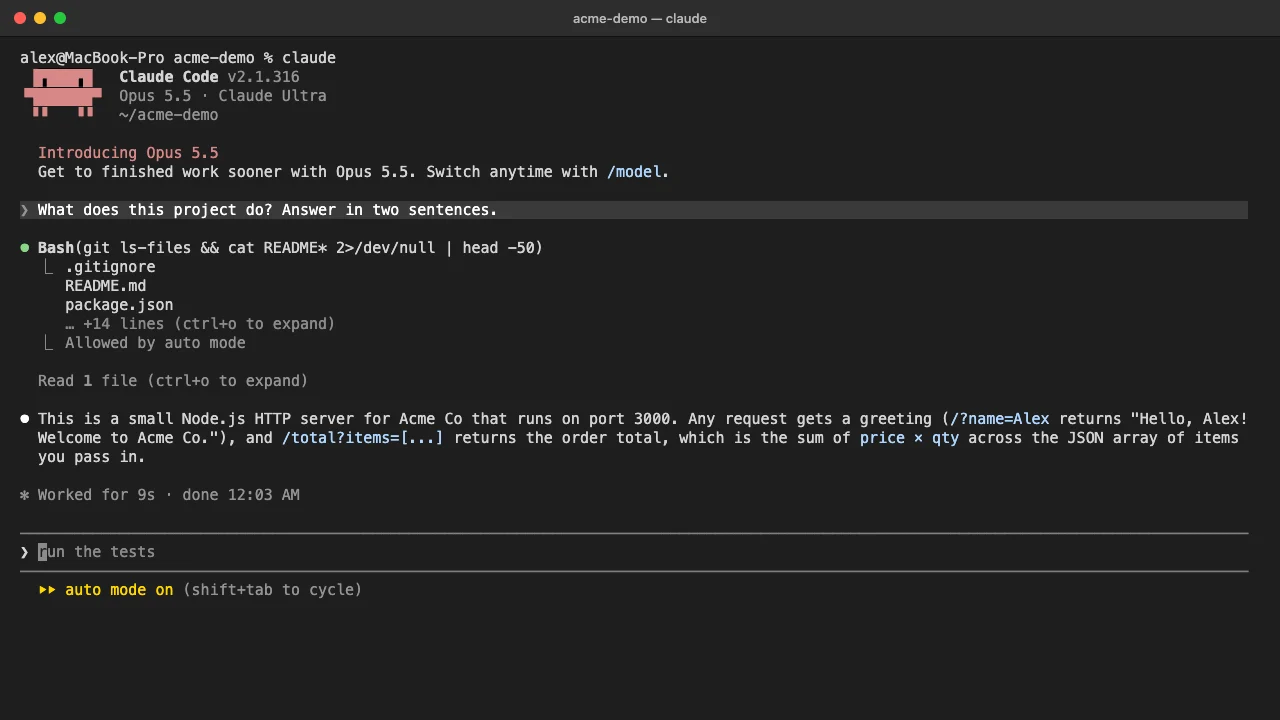
To use Claude, sign in at claude.ai, type what you need in the message box and press Enter. Claude answers in the same window, and you improve the result by replying in that chat. Click New in the sidebar when you move to a different topic.
This guide is for people who are new to Claude and want a working routine on day one. You need a Claude account on any plan: Free covers every step here, and the paid plans (Pro, Max, Ultra, Team and Enterprise) add more usage. Claude runs in the browser at claude.ai, in the desktop app for Mac and Windows, and in the iOS and Android apps. The screens below show claude.ai in the browser.
How to use Claude, step by step
-
Sign in at claude.ai. Open claude.ai in your browser and sign in or create an account. You must be at least 18 and in a supported country. If you prefer an app, the desktop version is at claude.ai/download, and the mobile app is listed as “Claude by Anthropic” in the App Store and Google Play.
-
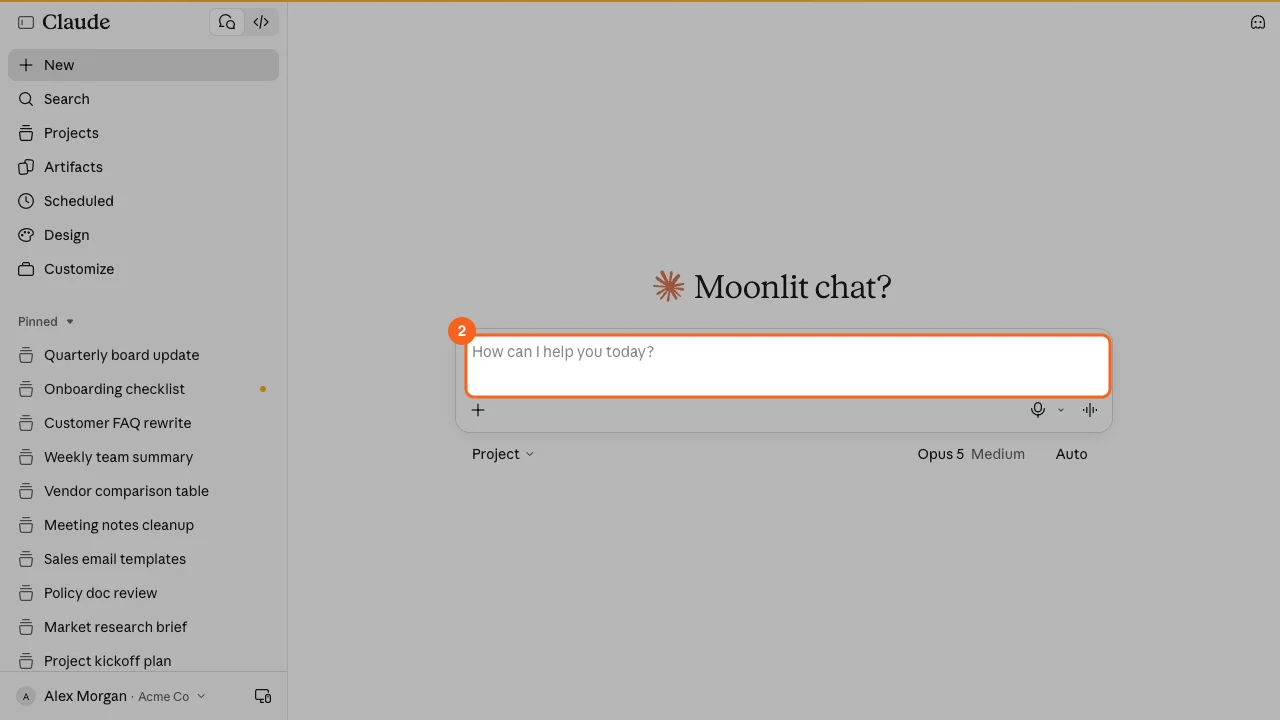
Type your request in the message box. Click the box that reads “How can I help you today?” and write what you need in plain language. Say who the output is for, the format you want and how long it should be. “Draft a five-item onboarding checklist for a new hire” gets a better first answer than “onboarding ideas”.
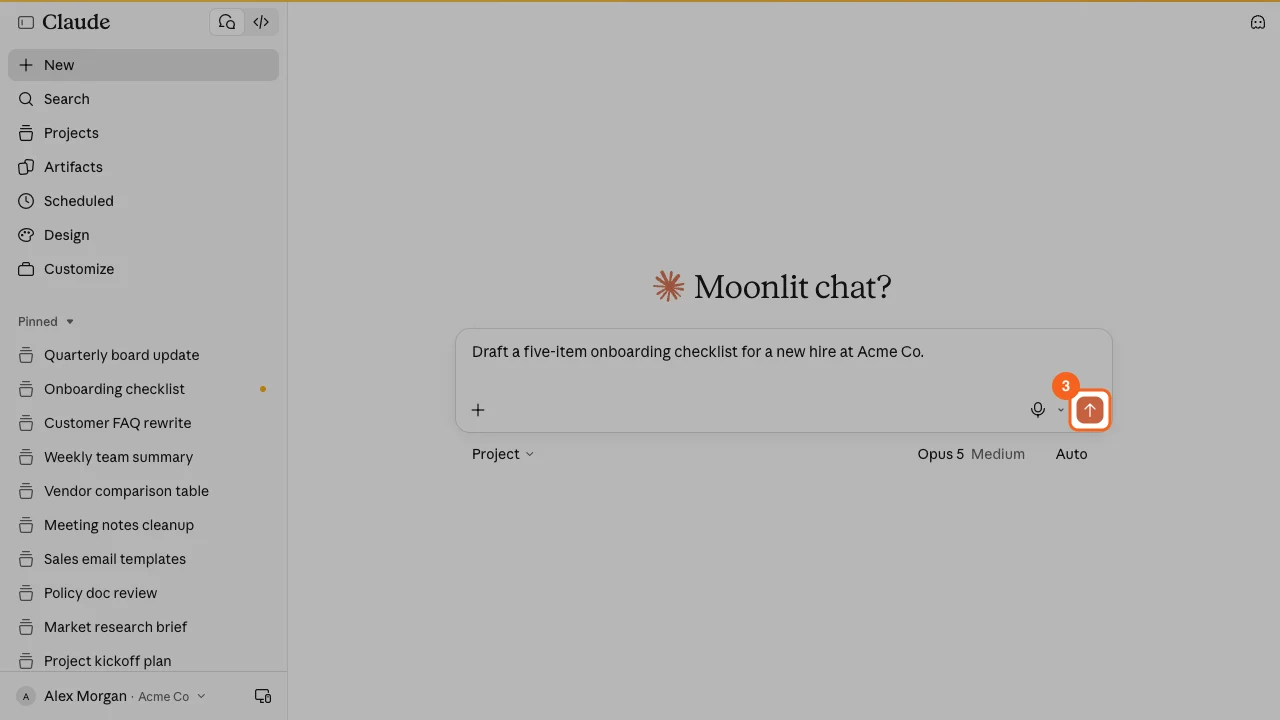
- Send it. Press Enter or click the orange arrow at the right of the box. Claude writes its answer below your message, and the chat is saved in the sidebar under Recents so you can return to it.
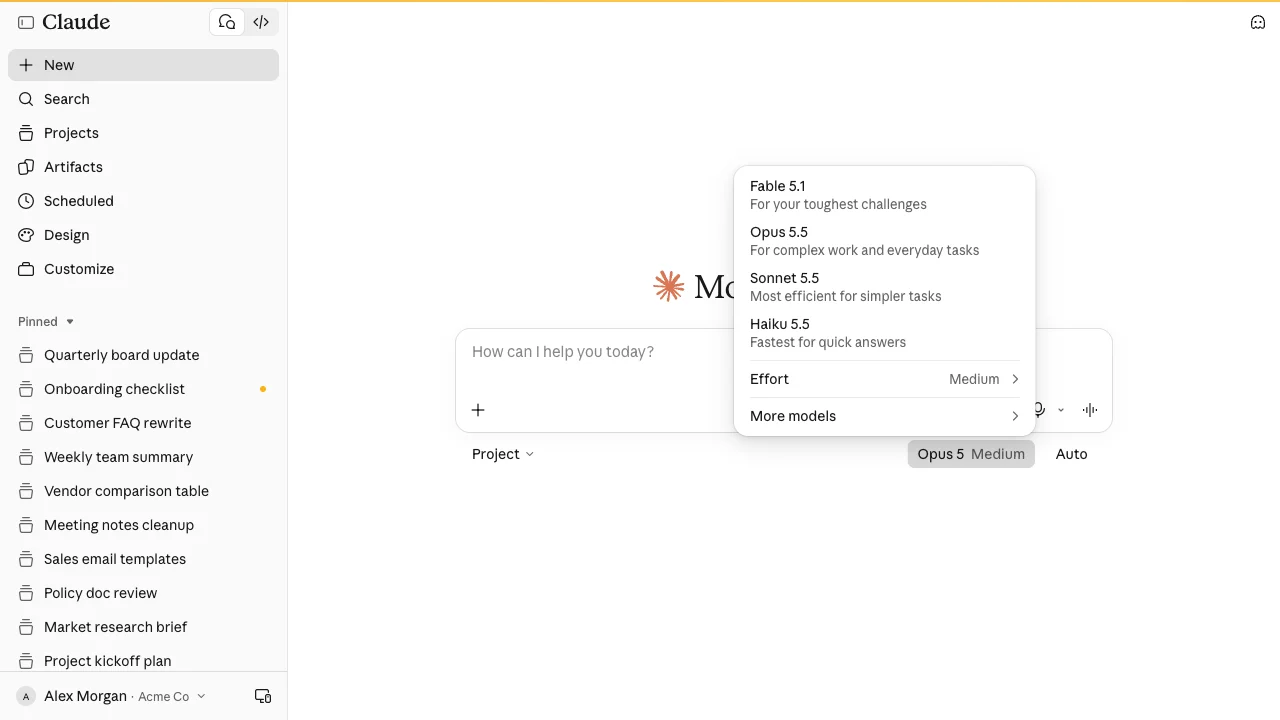
- Pick a model if you need to. The current model is shown under the message box. Click it to open the model menu. The main list shows Fable 5.1 (for your toughest challenges), Opus 5.5 (for complex work and everyday tasks), Sonnet 5.5 (most efficient for simpler tasks) and Haiku 5.5 (fastest for quick answers). Effort sets how long Claude thinks: Low, Medium, High, Extra or Max. Higher effort gives more thorough answers but takes longer and uses your limits faster. More models holds older versions. For most work you can leave this alone.

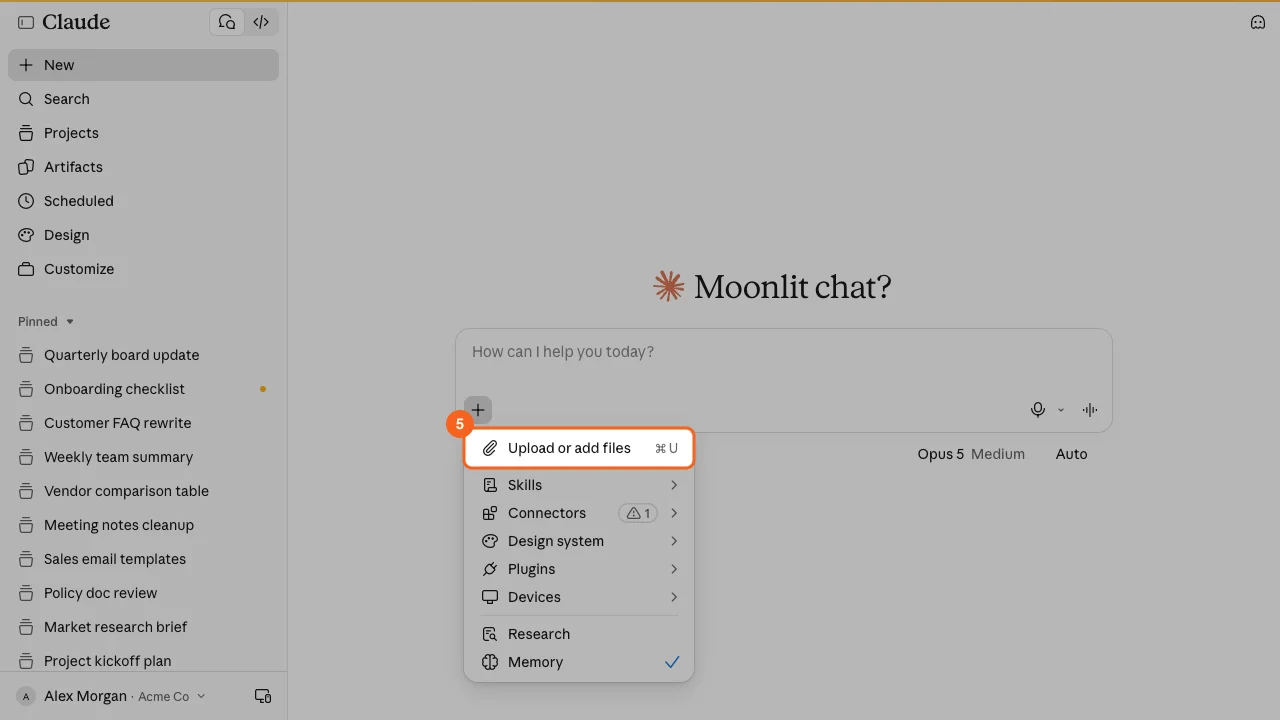
- Add files when the task needs them. Click the + button in the message box and choose Upload or add files. You can attach up to 20 files per chat, at up to 500 MB each, including PDF, DOCX, CSV, TXT, XLSX and images. Then tell Claude what to do with them, for example “List the action items from these notes with owners.” You can also paste a screenshot straight into the box; see how to paste an image into Claude.
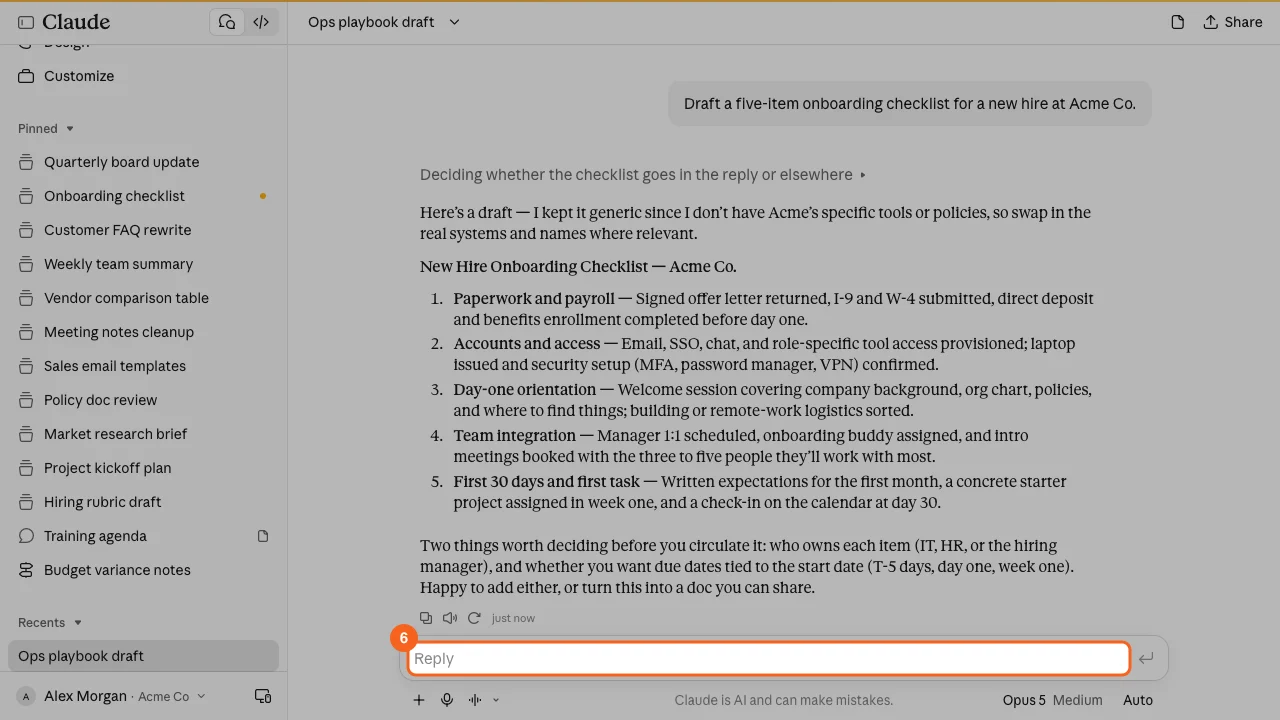
- Refine in the same chat. Type your next instruction in the Reply box under the answer, such as “Add a due date to each item, relative to the start date.” Claude keeps everything above in view, so short follow-ups work. Iterating like this is faster than writing one perfect prompt.
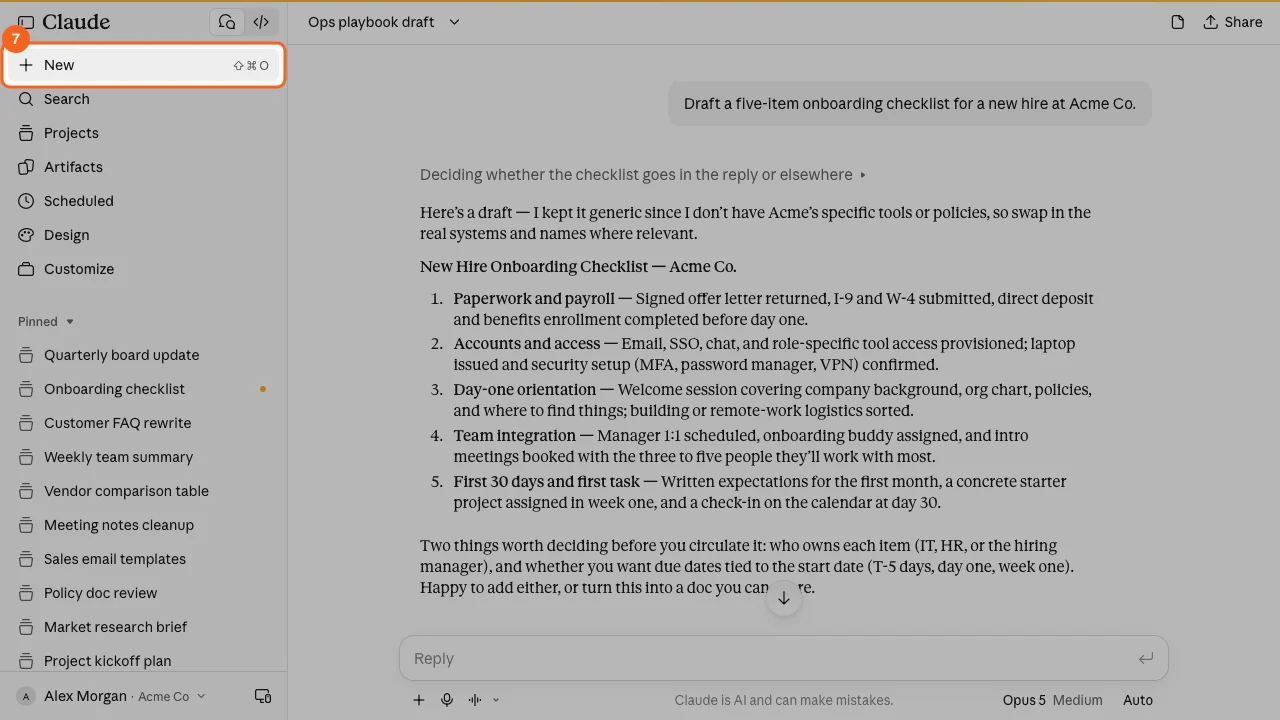
- Start a new chat for a new topic. Click New at the top of the sidebar. On a Mac the shortcut Shift+Command+O is shown next to it. A fresh chat keeps answers focused and stops one long thread from eating into your usage.
Common problems when you start using Claude
- The answer is generic. Claude only knows what you tell it. Add the audience, an example of what good looks like and the format you want, or attach the source document.
- You hit a usage limit. The Free plan has a session limit that resets every five hours. Long chats, large files and higher effort settings use more. Start a new chat for each topic and keep effort at the default unless you need more.
- Claude does not know about recent events. Claude can search the web. In the current claude.ai layout there is no separate switch: Claude searches when it helps. If your + menu still shows a Web search item, turn it on there. On Team and Enterprise plans an owner controls web search in Organization settings > Capabilities.
- A file will not upload. Check the size (500 MB per file), the page count (PDFs over 1,000 pages are refused) and the type. Excel files need code execution and file creation turned on in your account.
- The answer has a mistake. The footer under the Reply box says it plainly: “Claude is AI and can make mistakes.” Check facts, numbers and names before you send the output on.
Other ways to use Claude
Desktop and mobile apps. Claude Desktop for Mac and Windows and the iOS and Android apps sign in with the same account as claude.ai. See how to install Claude for the downloads.
Projects for repeat work. If you keep pasting the same background and instructions, put them in a project once. Every chat inside it starts with that context. See how to use Claude projects.
Research for deeper questions. On paid plans, Research in the + menu has Claude search many sources and write a cited report. It can take several minutes.
Claude Code for developers. Claude Code works in your terminal and code editor. See how to use Claude Code.
Rolling out Claude across a team
When 20 people each learn Claude on their own, the results look like 20 different tools. One person runs every task on Max effort and burns through usage by Tuesday. Another never attaches source files and gets generic drafts. Someone pastes a client contract into a personal account. Prompts that work stay in one person’s head.
What to settle before a wider rollout:
- One account type. Put everyone on the Team or Enterprise plan so chats, files and settings sit under company control, not on personal accounts.
- What may go into Claude. Write down which data is fine to upload and which is not, and say it in the first session.
- Default model and effort. Agree when people should move off the default, and when Max effort is worth the extra usage.
- Shared projects for shared work. Build one project per recurring task, with instructions and reference files, and share it with the people who do that task.
- A short prompt standard. Audience, goal, format, length, source material. Five lines that lift the quality of every first answer.
Frequently asked questions
Is Claude free to use?
Claude has a Free plan that covers chatting, file uploads and projects, with a session limit that resets every five hours. Paid plans (Pro, Max and Ultra for individuals, Team and Enterprise for companies) add usage and features such as Research.
Which Claude model should I use?
Start with the default your account shows. Use Haiku 5.5 when speed matters more than depth, Sonnet 5.5 for simpler everyday tasks and Opus 5.5 for complex work. Fable 5.1 is listed for your toughest challenges. Your plan, and on Team or Enterprise your admin, decides which models you see.
Can Claude read PDFs and images?
Claude reads PDFs, Word files, spreadsheets, text files and images (JPEG, PNG, GIF and WebP). For PDFs of 100 pages or fewer it also reads charts and visuals; longer PDFs, up to 1,000 pages, are read as text only.
Do I need to install anything to use Claude?
No install is needed: Claude works in the browser at claude.ai. The desktop and mobile apps are optional and use the same account.
Train your whole team on Claude
Your team is figuring this out one at a time. We train them together in a day.