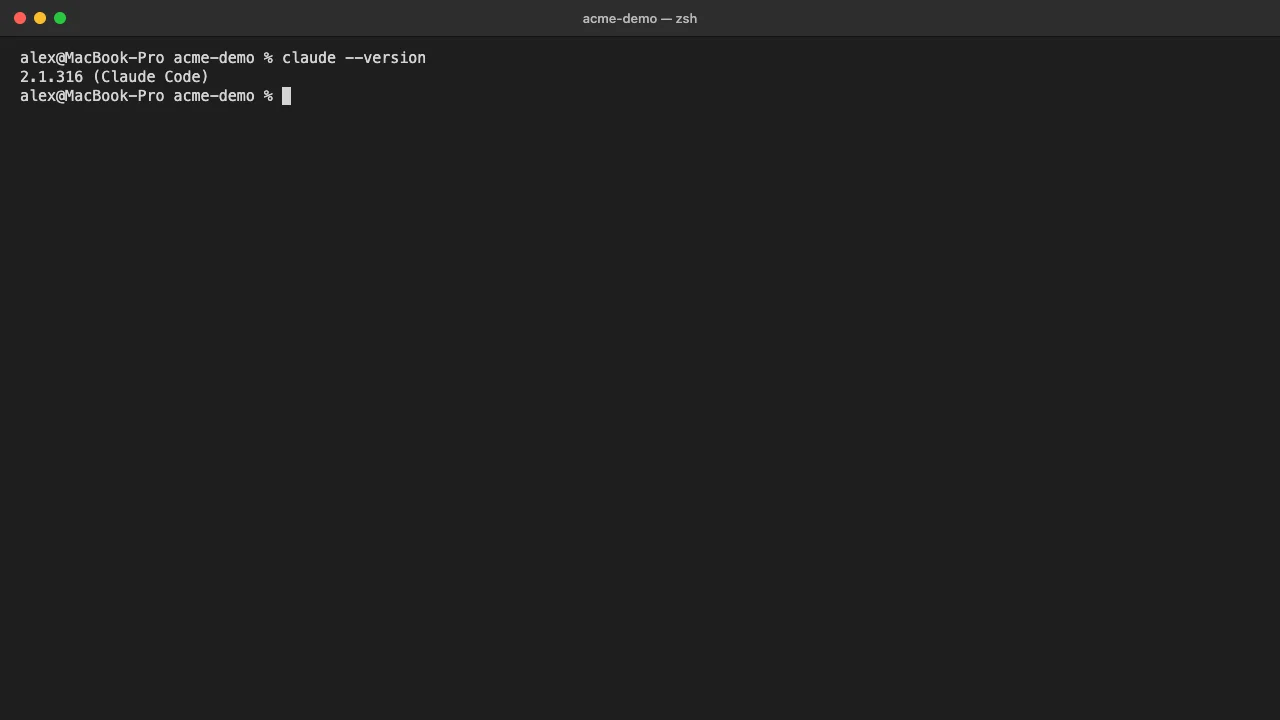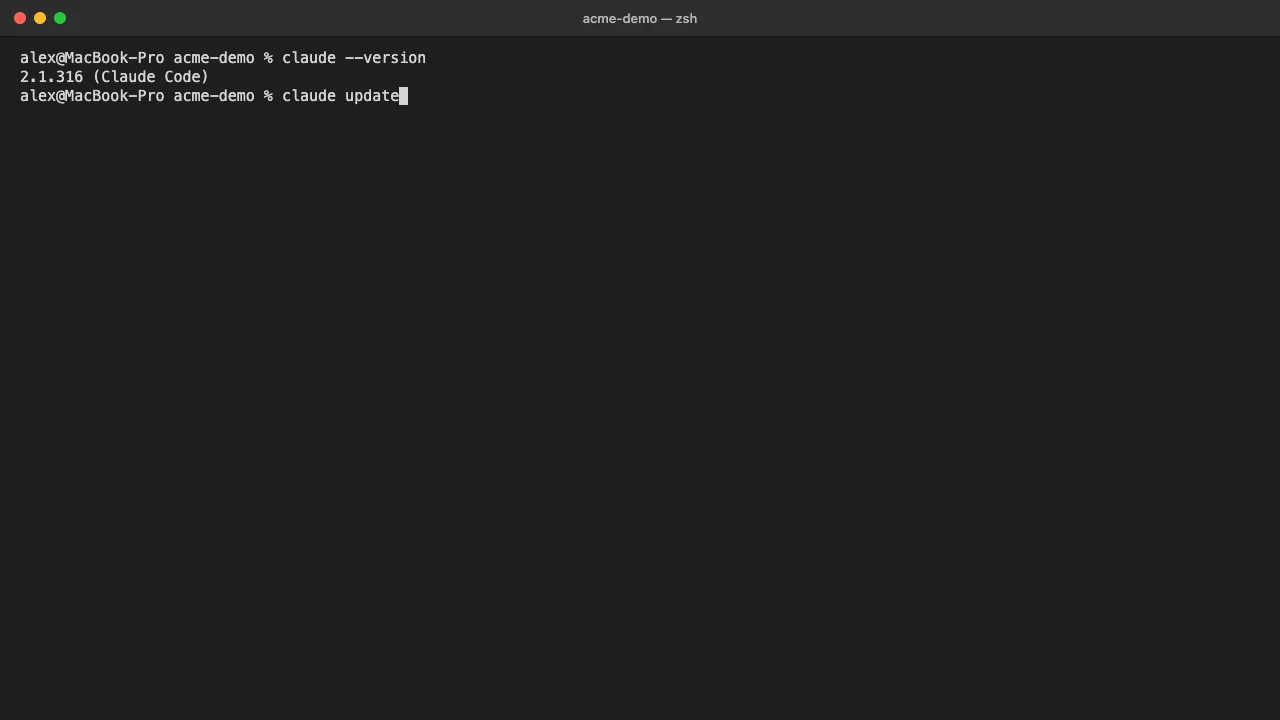
To use Claude Code, open a terminal in your project folder, type claude and press Enter, then confirm that you trust the folder. After that you talk to it in plain English: type a request in the prompt box, press Enter, and Claude reads your files, runs commands and answers or makes the change. Type / at any time to see the commands and skills you can run.
This guide is for anyone using Claude Code in the terminal for the first time, developers and non-developers alike. You need Claude Code installed (see how to install Claude Code) and one of these accounts: a Claude Pro, Max, Ultra, Team or Enterprise plan, a Claude Console account billed per API use, or access through a supported cloud provider. The screenshots show Claude Code 2.1.316 on macOS.
How to use Claude Code in the terminal
- Open a terminal in your project folder and run
claude. Move into the folder you want to work on, typeclaudeand press Enter. The first time you run it, Claude Code asks you to log in: follow the prompts to finish signing in in your browser.
cd /path/to/your/project
claude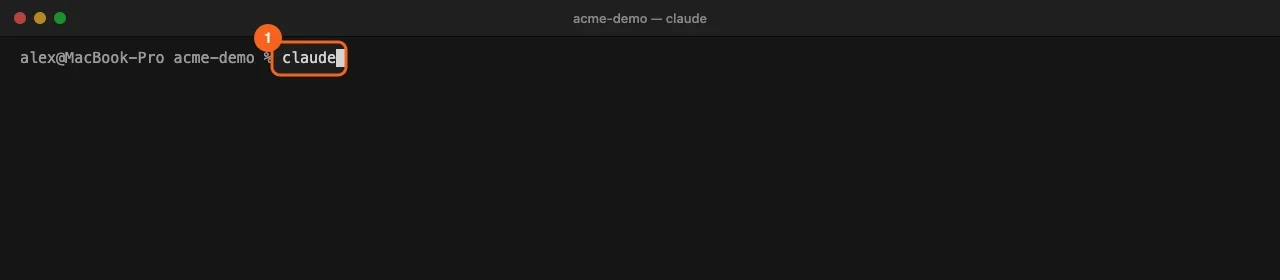
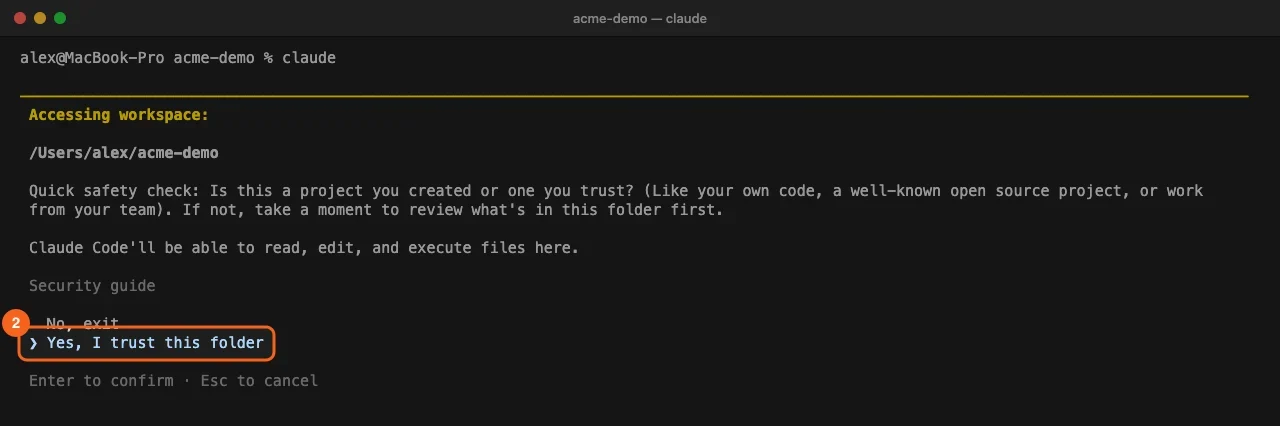
- Trust the folder. Claude Code shows an Accessing workspace check, because it will be able to read, edit and run files in this folder. Press the Down arrow to select Yes, I trust this folder, then press Enter. Choose No, exit for code you have not reviewed.
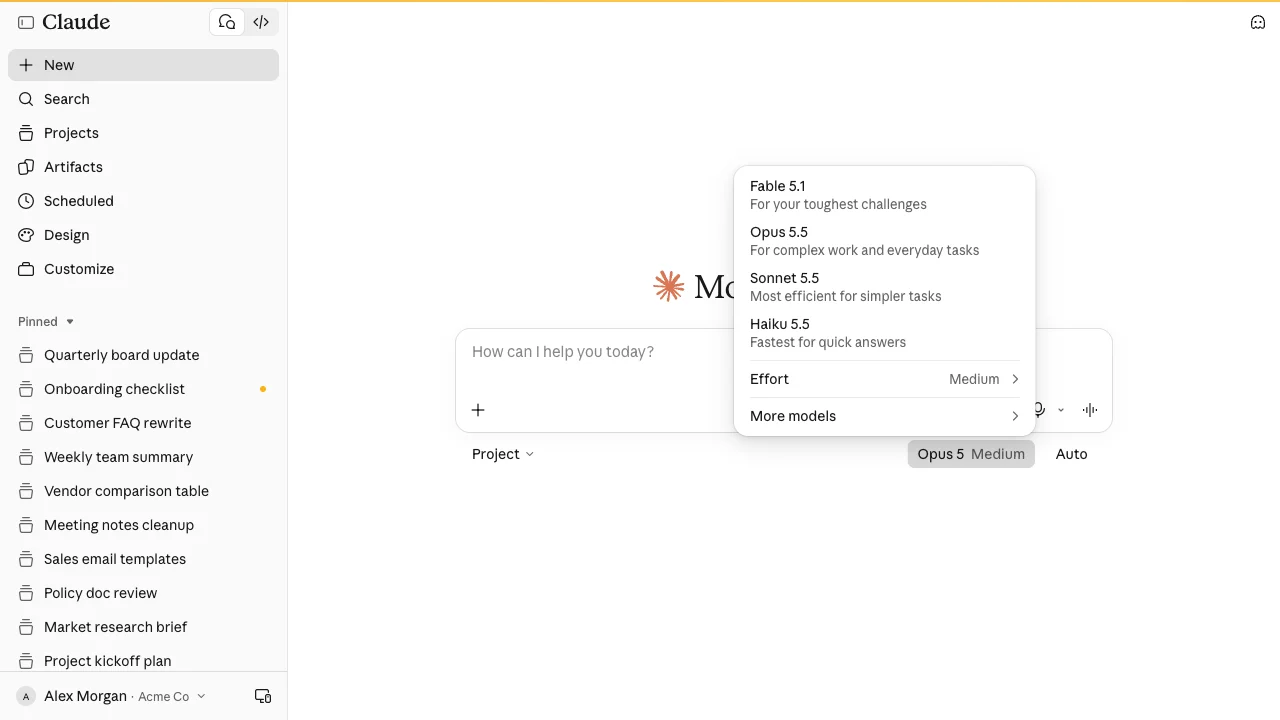
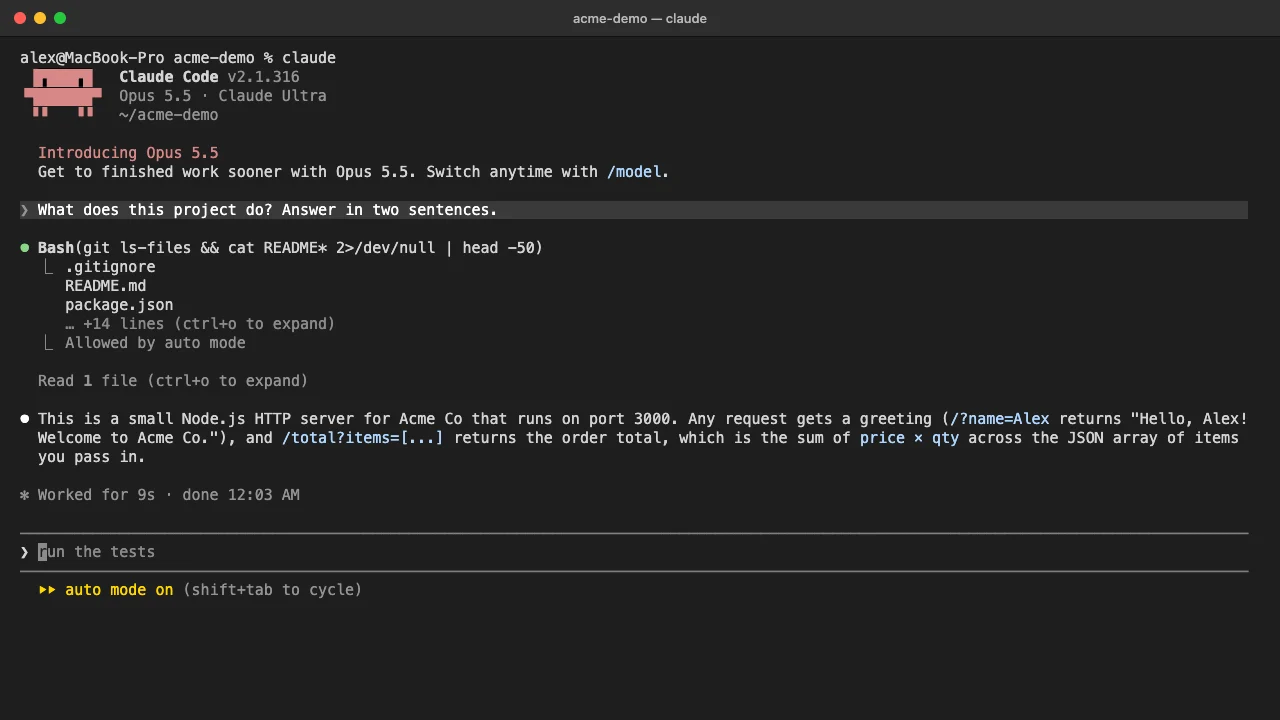
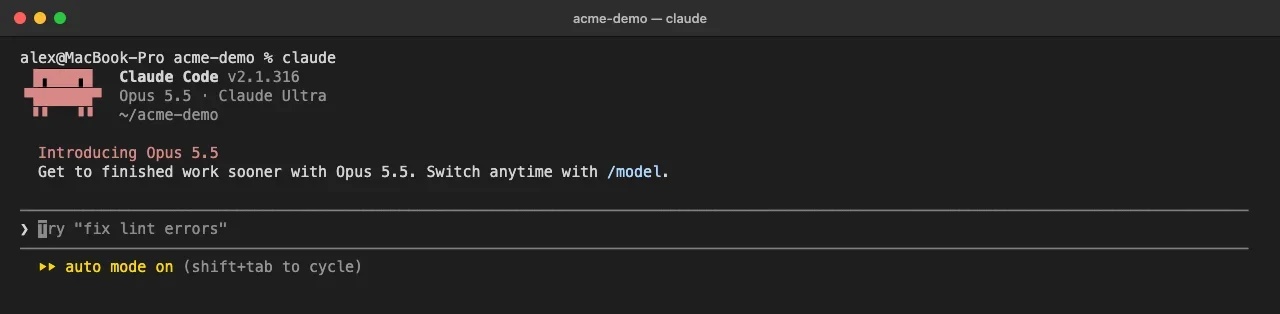
- Check the session header. The header shows the Claude Code version, the model (here Opus 5.5), your plan and the folder you are in. Below the prompt box, the footer shows the permission mode. New terminal sessions start in auto mode, where Claude works without asking for routine approvals and a separate check reviews risky actions before they run. Press Shift+Tab to cycle to another mode.
- Ask a question in plain English. Type your request in the prompt box and press Enter. A good first prompt is a question about the project, so you see how Claude reads your code before it changes anything.
What does this project do? Answer in two sentences.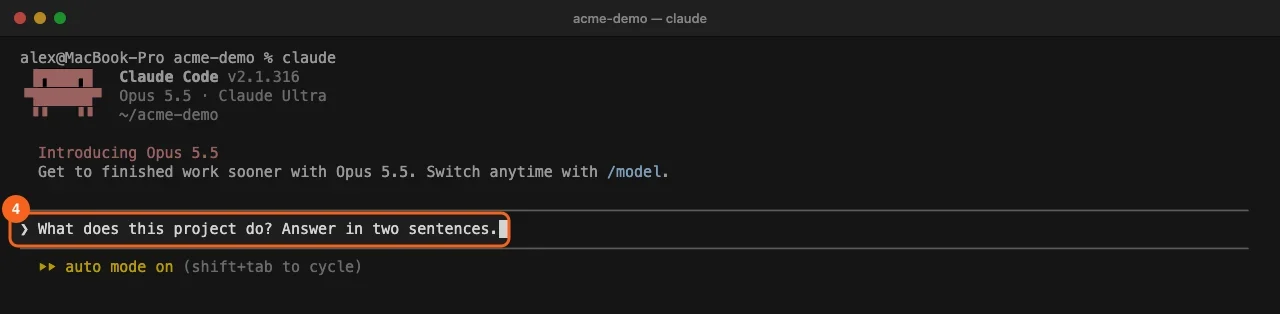
- Read what Claude did, then its answer. Claude lists each action before the answer: here it ran a shell command to list the files and read the README, marked Allowed by auto mode. Press Ctrl+O to expand the collapsed output. The answer follows, with how long Claude worked.
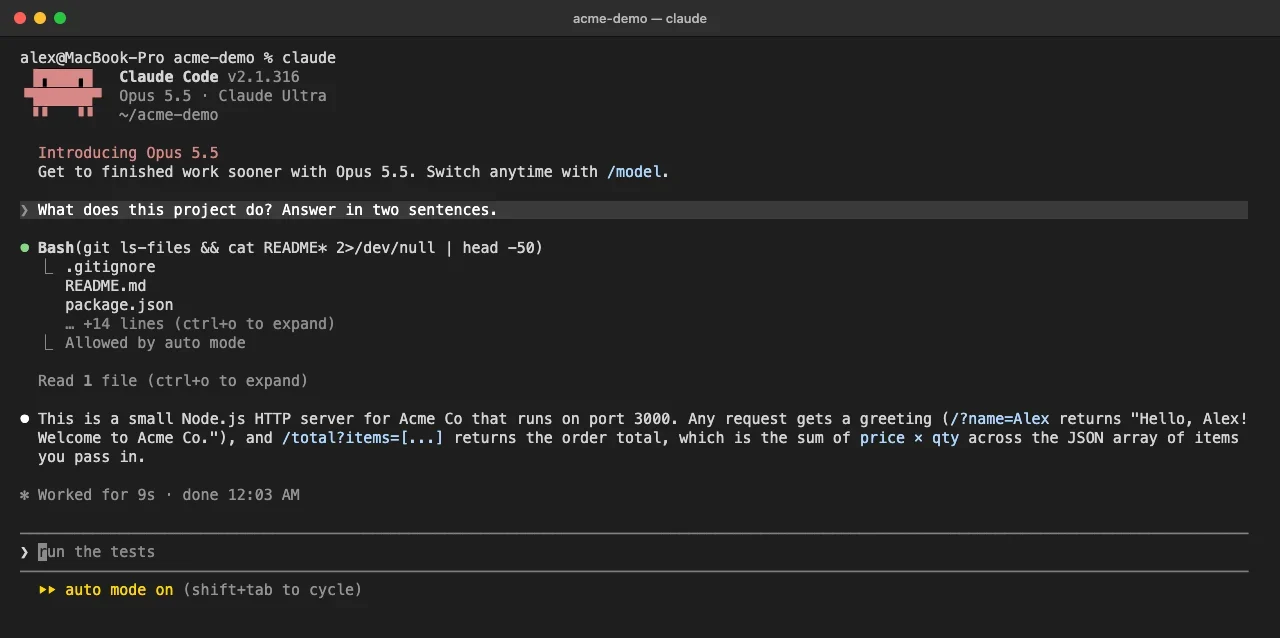
- Give it a real task. Describe the change you want in the same plain words. Name the file, the symptom and what done looks like. If Claude asks before it edits a file or runs a command, choose Yes to approve.
add input validation to the user registration form, then run the tests- Open the command menu with
/. Type a forward slash in an empty prompt. The menu lists the commands and skills available to you, each with a one-line description.
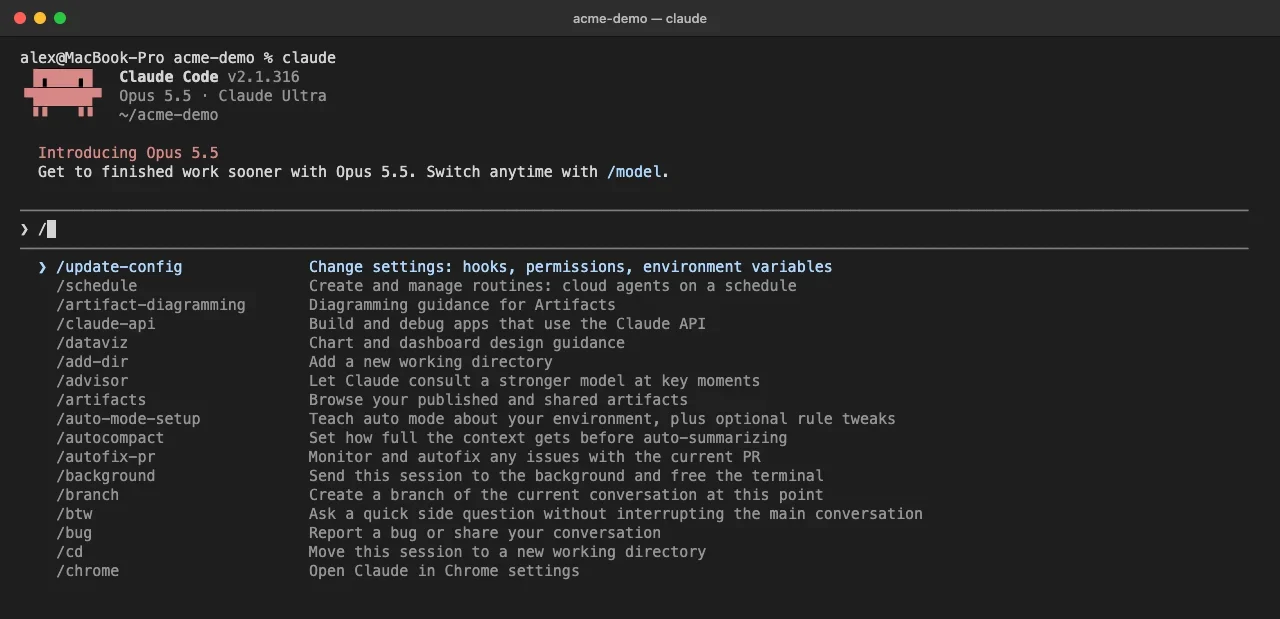
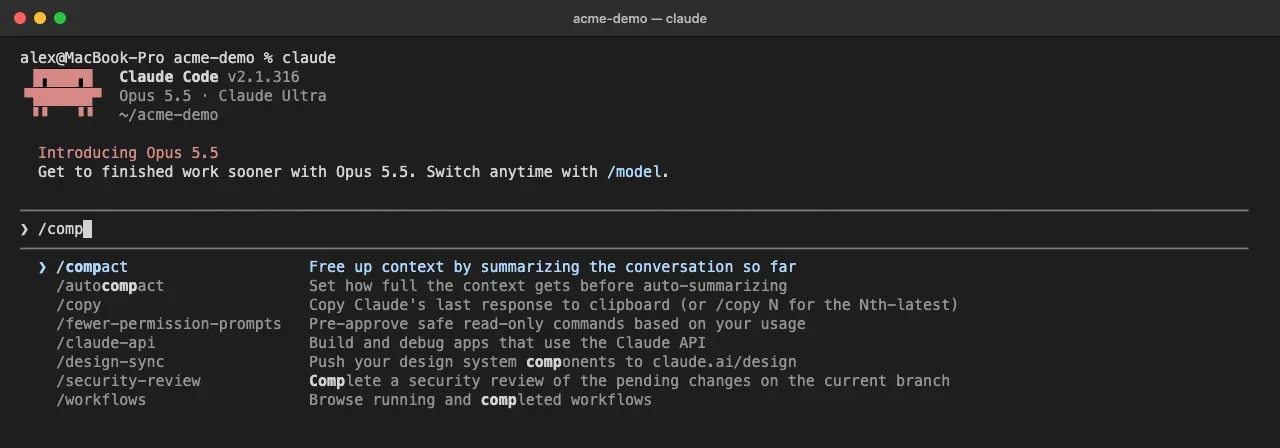
- Filter the list and run a command. Keep typing to narrow the list, move with the arrow keys and press Enter to run the highlighted command. Press Esc to close the menu without running anything.
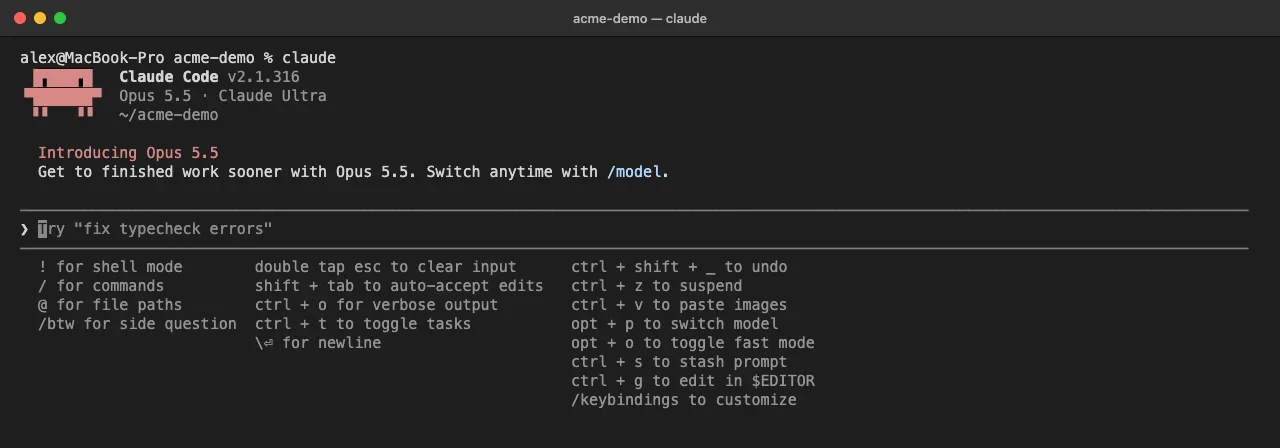
- See every shortcut with
?. Type a question mark in an empty prompt. The panel shows the quick prefixes (!for shell mode,/for commands,@for file paths) and the keyboard shortcuts, such as Shift+Tab to change mode and Ctrl+V to paste images.
- Clear, leave and come back. Run
/clearbetween unrelated tasks so the next task starts with a clean context. Run/exit, or press Ctrl+D twice, to leave. To pick up the last conversation in this folder later, start withclaude -c.
claude -cCommon problems when you use Claude Code
command not found: claude. The install folder is not on your PATH. On macOS with the default Zsh shell, add it and open a new terminal:
echo 'export PATH="$HOME/.local/bin:$PATH"' >> ~/.zshrc
source ~/.zshrc- Claude asks before every edit and command. The session is in Manual mode, either because you cycled to it or because auto mode is not available to you, for example when a settings file turns it off. Press Shift+Tab to see the modes you can switch to.
- Claude built something other than what you meant. Press Esc to stop it mid-action; work done so far is kept. Run
/rewind, or press Esc twice on an empty prompt, to roll the code and conversation back to an earlier prompt. See how to prompt Claude Code for requests that land the first time. - An error says the organization has been disabled, although your plan is active. An old
ANTHROPIC_API_KEYin your shell is overriding your subscription. Remove it from your shell profile, restart Claude Code, and run/statusto confirm which login is active. - You started Claude Code in your home folder. It then keeps your trust for that session only. Start it from the project folder instead.
Other places to use Claude Code
The same Claude Code runs on the web at claude.ai/code, in a desktop app, in VS Code and JetBrains IDEs, in Slack, and in CI with GitHub Actions or GitLab. In VS Code you can also run claude in the built-in terminal; see how to use Claude Code in VS Code. For one-off answers in scripts, claude -p "query" prints the response and exits.
Rolling out Claude Code across a team
When twenty people learn Claude Code alone, each ends up with a private setup. One person switches to bypass mode to stop the prompts, another approves every command by hand, and a third keeps one session open for a week and burns usage re-reading old history. Project rules live in someone’s head, so Claude rediscovers them in every session and every person gets different results.
What to agree on before rollout:
- A shared
CLAUDE.mdper repository. Keep it short: the exact test, lint and build commands, and the decisions Claude cannot read from the code. See how to write CLAUDE.md. - Permission rules in the repository. Put deny rules for secrets (such as
.env) in.claude/settings.jsonand commit it. Deny rules hold in every mode, auto mode included. - Managed settings for policy. Admins can set rules no personal settings file overrides, including turning auto mode off.
- A session habit.
/clearbetween tasks,Escthe moment Claude drifts, and a check (tests, a build) that Claude must run before it says it is done.
Frequently asked questions
How can I talk to Claude Code?
Type in plain English in the prompt box and press Enter, the way you would brief a colleague. For a message on several lines, press \ then Enter, or Shift+Enter in terminals that support it, such as iTerm2, Apple Terminal and Windows Terminal. You can also paste screenshots and type @ to point at a file.
Do I need a paid plan to use Claude Code?
Yes. Claude Code works with Claude Pro, Max, Ultra, Team and Enterprise plans, with a Claude Console account billed per API use, or through Amazon Bedrock, Google Cloud’s Agent Platform or Microsoft Foundry.
Can I use Claude Code if I do not code?
Yes. Anthropic’s own terminal guide says you do not need to know how to code: you describe what you want and Claude writes the code. You still need to open a terminal and type a few commands, which this guide covers.
How do I stop Claude Code while it is working?
Press Esc. Claude stops the current action and keeps what it has done so far, so you can redirect it. Ctrl+C also interrupts a running task.
Train your whole team on Claude
Your team is figuring this out one at a time. We train them together in a day.