To use Claude projects, create a project for one recurring piece of work, write instructions that tell Claude how to behave there, and upload the reference files it should know. Then start every related chat from the project’s message box: each chat begins with the same instructions and files, so you stop pasting background into every prompt.
Projects are available on every claude.ai plan; Free accounts can create up to five. Paid plans add retrieval mode for large file sets, and Team and Enterprise plans can share projects with colleagues. A project pays off for any task you come back to every week: a client account, a report, a recurring type of email.
How to use Claude projects
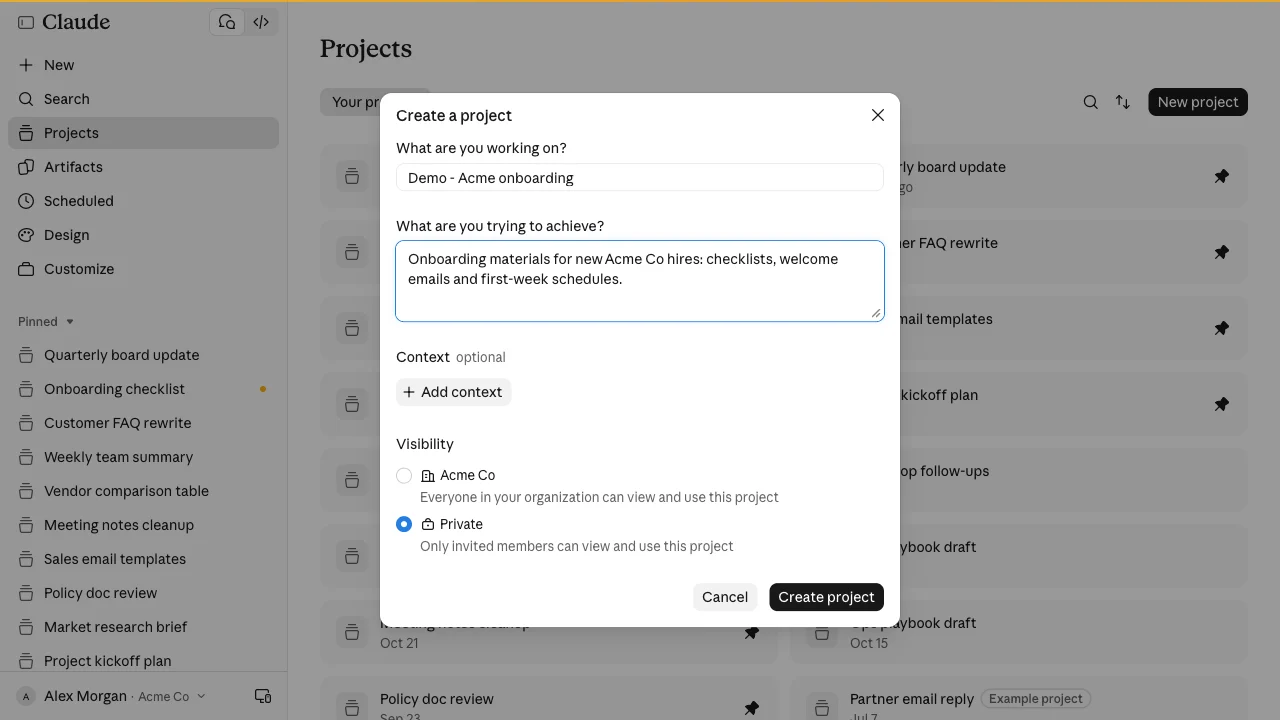
- Create the project. Click Projects in the left sidebar, then New project. Fill in “What are you working on?” and “What are you trying to achieve?”, choose Visibility if your plan shows it, and click Create project. For the full walkthrough, see how to start a project in Claude.
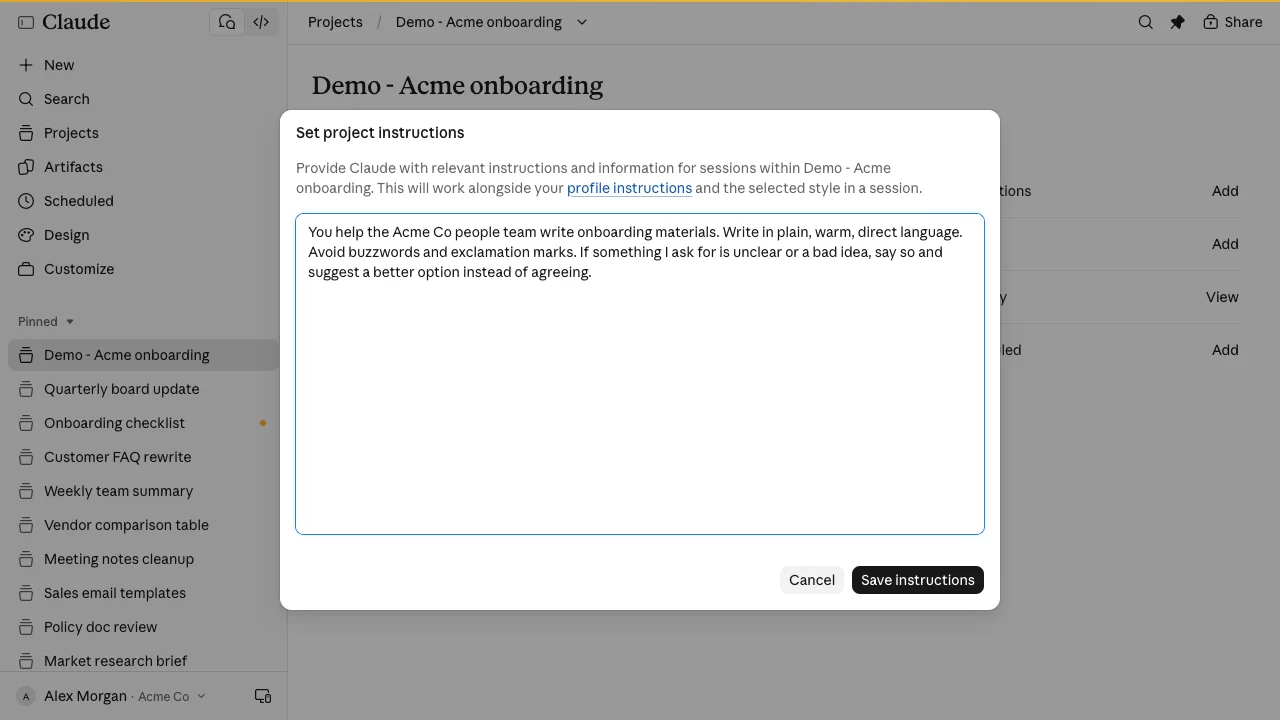
- Write the instructions. On the project page, click Add next to Instructions. Say who Claude is helping, the tone and format you want, what to avoid, and when to push back. Click Save instructions. They apply to every chat in the project, alongside your profile instructions and the selected style.
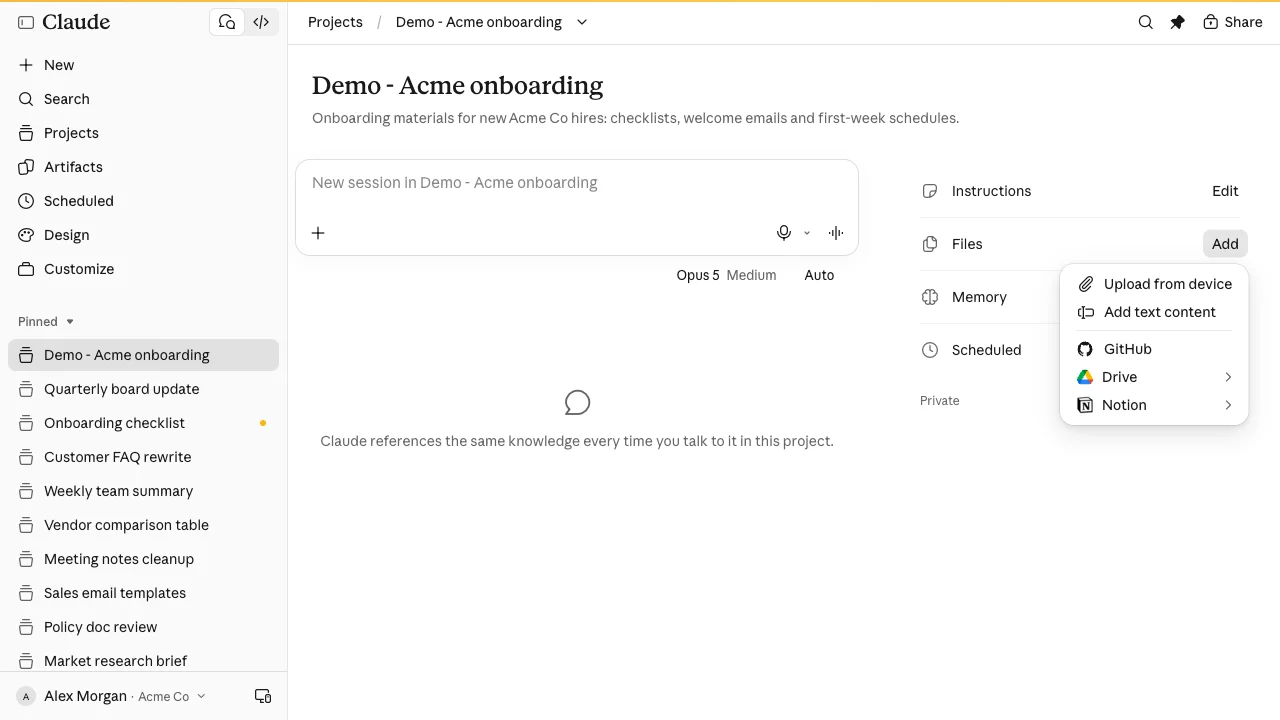
- Add the reference files. Click Add next to Files. Choose Upload from device for documents, Add text content to paste text, or a connected source such as GitHub, Drive or Notion. Good candidates are style guides, templates, policies, product sheets and past examples of good work.
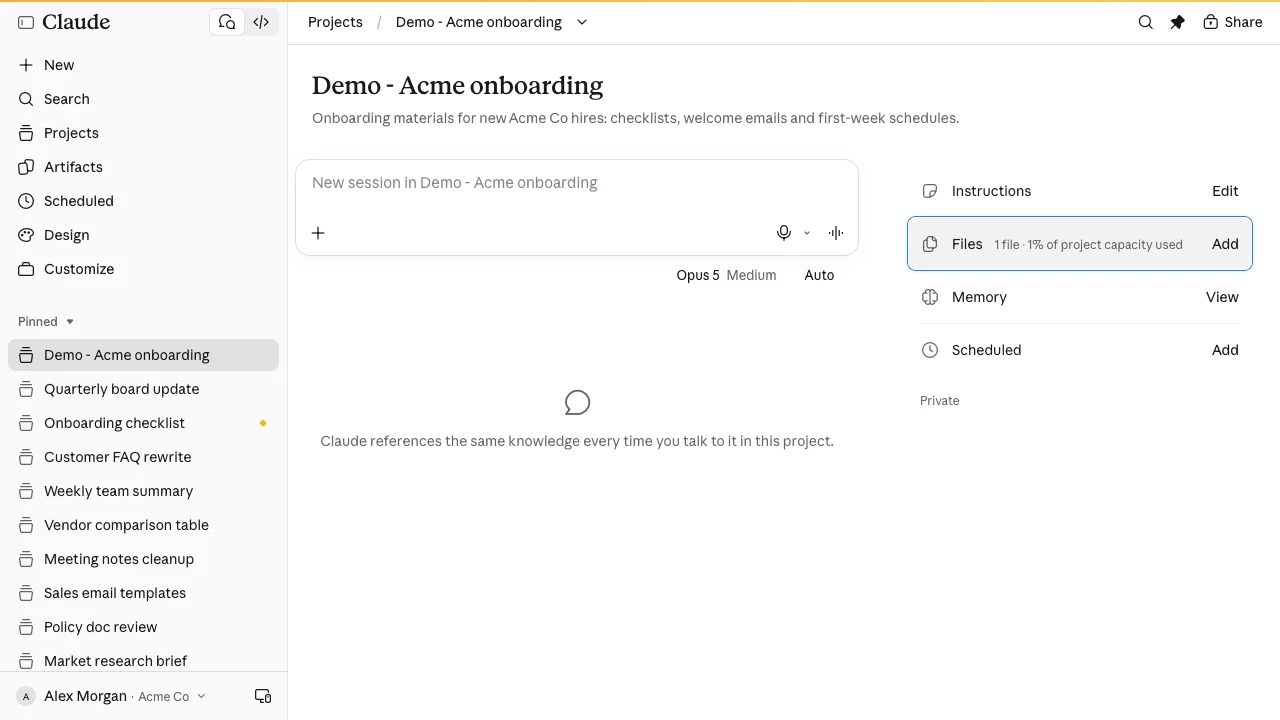
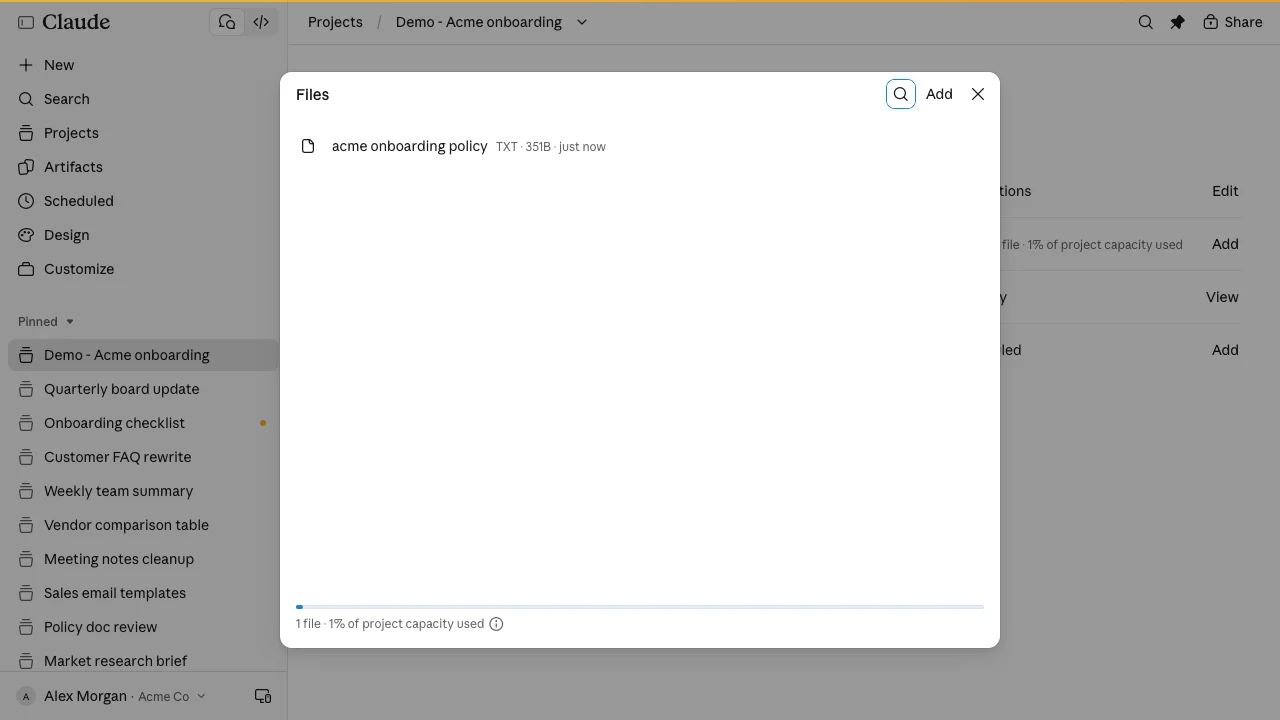
- Check what the project knows. Click the Files row. The Files dialog lists every file with its type, size and upload time, and a bar at the bottom shows how much of the project’s capacity is used. Use this list to spot outdated versions, so Claude does not quote them.
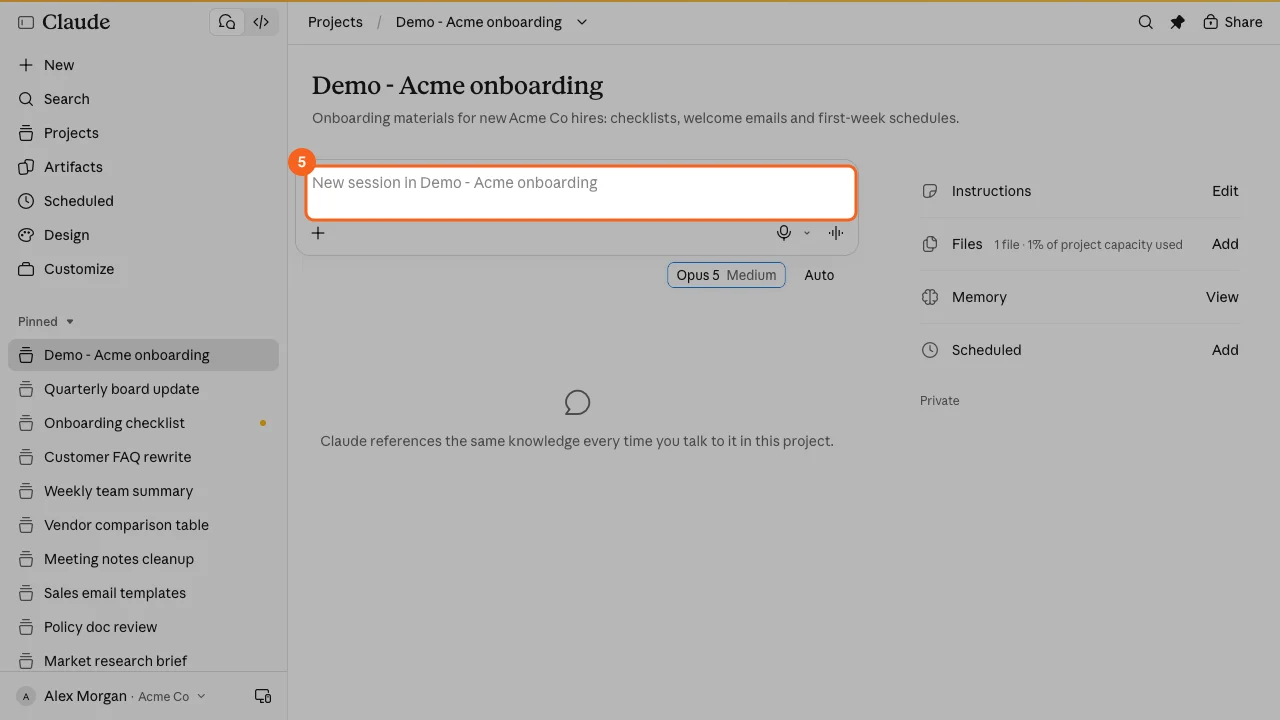
- Start each chat from the project. Type your request in the project’s message box, which reads “New session in” followed by the project name, and press Enter. Use one chat per task. A fresh chat in the project still gets the instructions and files, and a short chat stays more focused than one long thread.
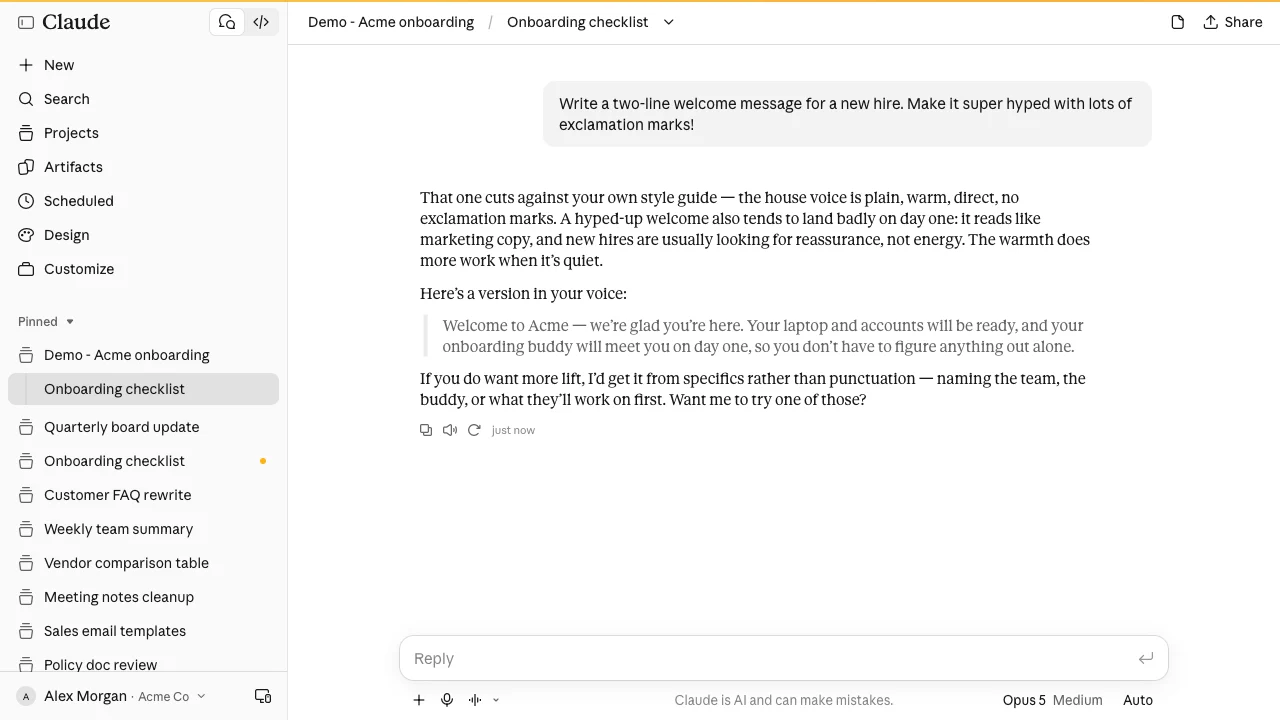
- Check that Claude follows the setup. Read the first answers against your instructions. In the example below, the request asked for a hyped welcome message with exclamation marks. Claude said this conflicts with the house style in the instructions, explained why, and offered a plain version instead. If answers drift, tighten the instructions rather than repeating the rule in every prompt.
-
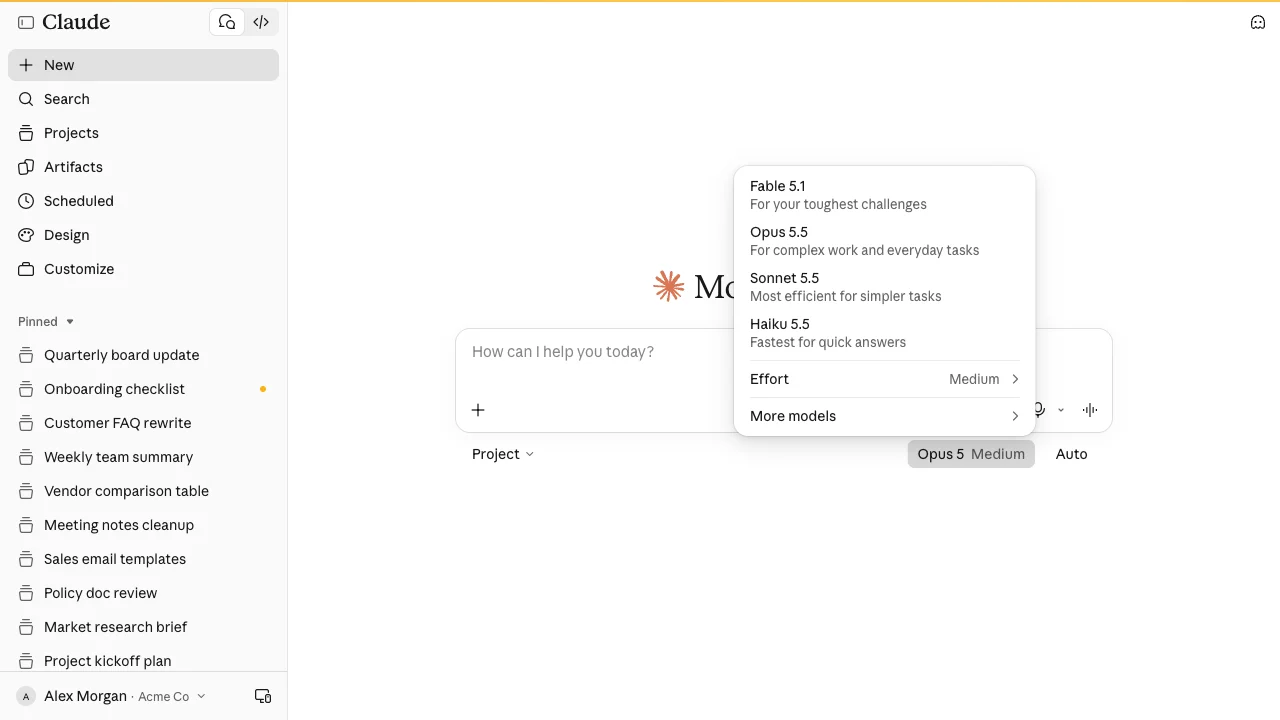
Pick the model per chat. The model name under the message box (for example Opus 5 Medium) sets which model answers. Use a fast model for quick edits and a larger one for analysis. See how to switch Claude models in projects.
-
Move related chats in. For a chat you started outside the project, open the dropdown next to the chat’s name, choose Add to project, and pick the project. The same menu removes a chat from a project or moves it to another one.
Instructions, files and memory, and what goes where
- Instructions are rules: role, tone, format, what to avoid. Keep them short and checkable. “Be helpful” gives Claude nothing to work with; “No exclamation marks, and flag requests that conflict with our style guide” does.
- Files are background: documents Claude should read, not rules it must follow. On paid plans, Claude switches the project to retrieval (RAG) mode as knowledge nears the context limit, which Anthropic says expands capacity by up to 10 times.
- Memory is per project. Each project keeps its own memory, which Claude uses alongside your memory outside projects but not other projects’ memory. To keep a project’s memory separate, turn off Use account memory under Memory on the project page. On Team and Enterprise plans, owners control whether memory is available.
- Chats are separate threads. Claude can carry context between chats in the same project through the project’s memory and, on paid plans, by searching past chats in that project. Anything that must apply every time belongs in the instructions or a file.
Common problems with Claude projects
- Claude ignores a rule. Move it from the description or the chat into the instructions, and make it concrete. Anthropic’s help center notes that the project name and description are for your reference.
- Claude quotes an old version of a document. Open Files and check for an outdated copy. Keep only the current version in the project.
- A teammate gets different answers in the same project. Check the model and effort level in their chat first; the model is chosen per chat, not stored with the project.
- Answers get worse in a long chat. Start a new chat in the project. The instructions and files load again, and the earlier thread no longer crowds the answer.
- You cannot share the project. Sharing is a Team and Enterprise feature. See how to make a Claude project public for the sharing options, including what is possible on personal plans.
Projects also exist in Cowork, where Anthropic states they work the same way as in chat; you can import a chat project there with its files and instructions. Anthropic is also rolling out a new version of projects in stages, starting with Claude Code. If your project page looks different from the screenshots, follow what you see.
Rolling out Claude projects across a team
Setting up a good project is the easy part. Day-to-day use is where a team drifts: people run every task in one long thread, correct the same mistake in chat after chat without telling anyone, and leave superseded files in place until Claude quotes them. Personal context also leaks into client work when nobody decides how memory should behave.
What to agree on:
- One chat per task. People start a fresh chat in the project for each deliverable instead of one long thread.
- A feedback loop to the owner. When someone corrects Claude twice for the same thing, they send it to the project owner to add to the instructions.
- A monthly file check. The owner opens Files, removes superseded versions, and checks capacity.
- Memory settings. Decide per project whether Use account memory stays on, so client projects do not draw on personal context.
- Model guidance. Which model and effort level fits each type of task, so usage limits go to the work that needs them.
Frequently asked questions
What are Claude projects used for?
Recurring work that needs the same background each time: client accounts, reports, proposals, onboarding material or support replies. The project holds the instructions and files, so each new chat starts with that context.
How much can I upload to a Claude project?
Anthropic does not publish a file count; the limit is the project’s capacity. The Files dialog shows how much of that capacity your files use. On paid plans, Claude switches to retrieval mode when knowledge nears the context limit, which expands capacity by up to 10 times.
Do chats in a project remember each other?
Partly. Each project keeps its own memory, built from your work in that project, and on paid plans Claude can search past chats within the same project. Rules that must always apply belong in the instructions, not in an earlier chat.
Can my whole team use the same project?
On Team and Enterprise plans, yes. Click Share in the project to invite people with Can view or Can edit access, or open it to everyone in your organization. Personal plans cannot share projects.
Train your whole team on Claude
Your team is figuring this out one at a time. We train them together in a day.